1Introduction
Prism tells whether a seat is occupied, without a camera. It looks down at the seat with a 60 GHz coherent radar and a narrow beam of about ±10°, and reports occupied or free over LoRaWAN. There is no image and no identity, only the state of the seat. Prism is the sensor inside SeatSense, Sensative’s seat-occupancy service for trains, and is supplied as part of that service.
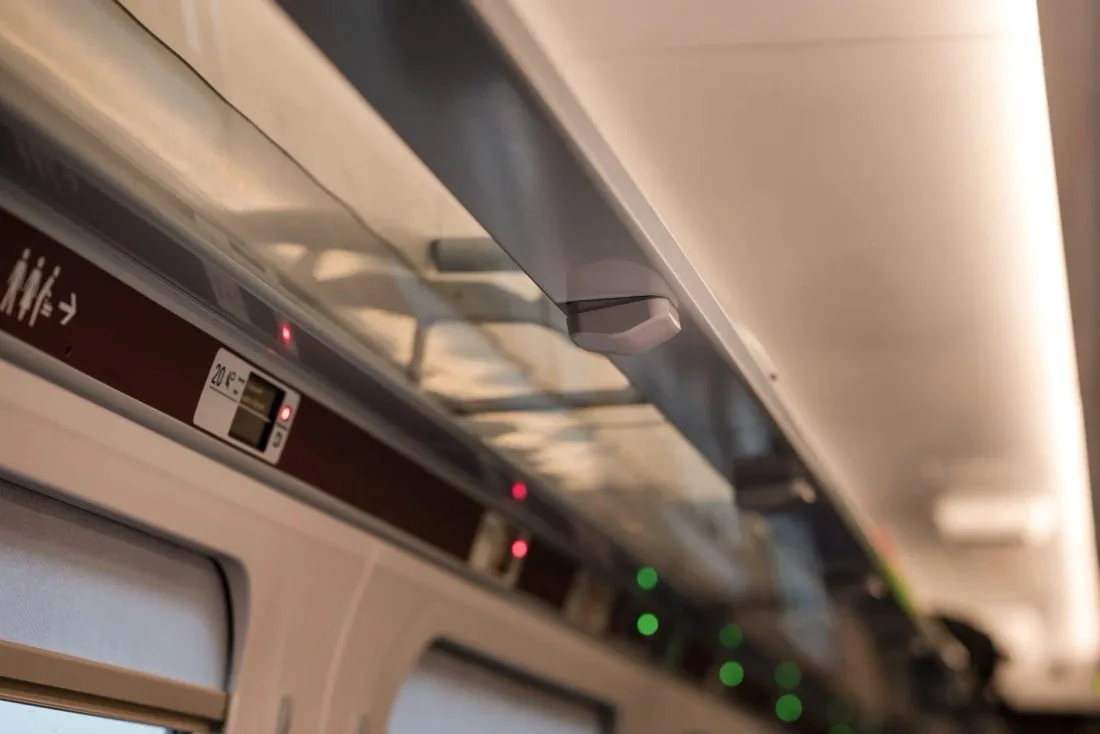
It is built for rolling stock: certified to EN 50155 (electronics on rolling stock), EN 50121-3-2 (electromagnetic compatibility) and EN 61373 (shock and vibration), in UL94-V0 material. It is fitted with adhesive under the luggage rack, with no change to the seat and no cables.
One or two radar units
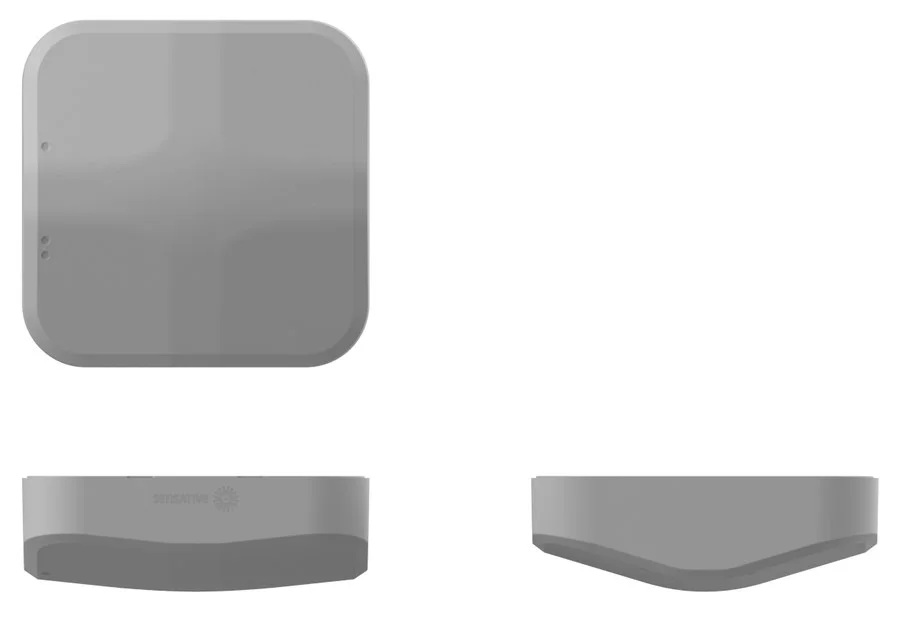
Like a prism, the front of the housing has faces that point in different directions. Behind them sit one or two complete radar units, each aimed at its own seat:
- Single: one radar unit, for a single seat.
- Double: two radar units, for a double seat, each pointing at one of the two seats.
Each radar unit is complete in itself: a radar board, a LoRaWAN board and its own 2,500 mAh lithium manganese dioxide (LiMnO₂) battery in an aluminium cradle. It is a LoRaWAN device of its own, with its own keys and its own NFC area. A double Prism is therefore two devices in one housing.
- The radar board runs the radar firmware and does the measuring, with the Adv_Seating radar method (see How a seat is judged). It has no VSM application.
- The LoRaWAN board runs the firmware and a VSM application. It handles the network, decides what to send and when, and measures the temperature.
Prism has the same radar board, LoRaWAN board and firmware as Puck Radar, with a VSM application of its own.
Mounting variants
The back of Prism is either flat, or a wedge at one of several angles. The wedge matches the angle of the luggage rack and the position of the sensor, so that each radar beam points at its seat. With single and double sensors, standard and first class, and left and right, there are 13 mounting variants. Which variant goes where is decided for each seat layout when SeatSense is planned.
Each radar unit works with any LoRaWAN network server (LoRaWAN 1.0.4, class A, OTAA). What its LoRaWAN board sends, and when, is decided by an application running on Sensative’s Virtual Sensing Machine (VSM). This manual describes the application Seat-occupancy R30–R33, which can be configured, and replaced by a newer version, over the air or with NFC. Sensative can also offer alternative VSM applications for Prism; see Which application is in the sensor.
What’s in the box
- Prism in the chosen mounting variant, with the adhesive already on the back
The keys (DevEUI and AppKey) for each radar unit come with the delivery information. The installation jig is used by the SeatSense installers and is not part of the delivery.
Parts of the sensor
2Before you start
A LoRaWAN sensor needs a little more preparation than a sensor that pairs with a hub. Have this ready first:
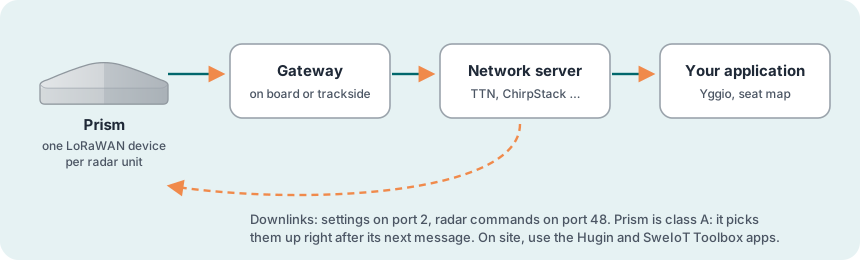
You need
- LoRaWAN coverage where the train runs: gateways on board or along the track, online
- An account on a LoRaWAN network server, with the gateways added to it
- The keys for each radar unit: its DevEUI and AppKey, from the delivery information. The JoinEUI is the same for all Prism, Puck and Square sensors:
70B3D52C0001D4C3. - An Android phone with NFC is recommended. It starts the radar units, and runs the two apps you use on site: Hugin (NFC, for the LoRaWAN board; needs an Yggio user account, with the units registered to your organisation) and SweIoT Toolbox (Bluetooth, for the radar board; free on Google Play). Both are for Android only, and with Prism they are a great help in setting the radar up correctly, especially for a new seat layout. An iPhone can start the units with an NFC reading app (see Finding the NFC antennas), but cannot run the apps.
- A payload decoder for Sensative VSM sensors (see Decoding the messages). In SeatSense, Yggio decodes the messages and builds the seat map.
- The installation jig and the seat layout, which tell which mounting variant goes where
Choosing the place
- Under the luggage rack, above the seat, in the position the seat layout calls for. Each radar beam must point at its own seat.
- A clear view: nothing should stand between the radar and the seat, such as a bag strap, a sign or a cable tray.
- A clean, dry, smooth surface for the adhesive.
- Radio: mounting on metal is fine, but do not enclose Prism in metal: metal stops both the radio and the radar. The gateway must be within reach, on board or along the track. Check the signal at the final spot (step 4).
Finding the NFC antennas
Each radar unit has its own NFC area, on the front face in front of it. NFC only reaches a couple of centimetres, so lay the phone flat against the face, antenna over antenna:
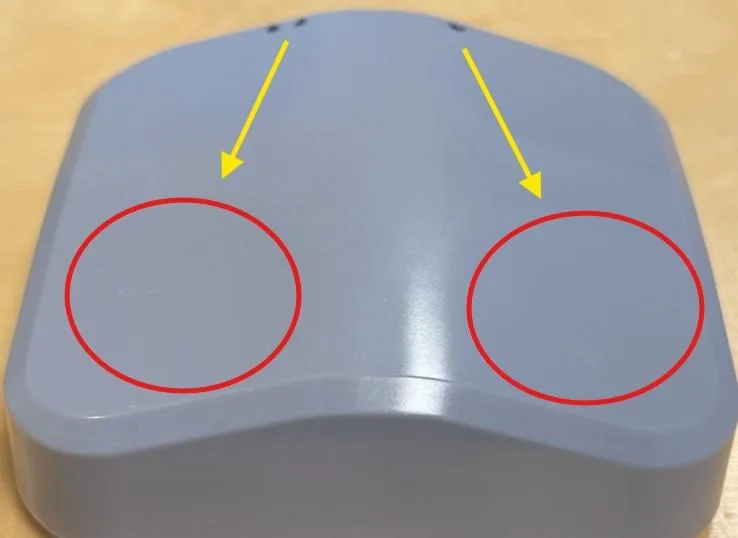
- On Prism: on the front face opposite the dots on the edge. One dot is radar unit 1, two dots radar unit 2. A single Prism has one unit.
- On an Android phone (recommended): switch NFC on, and turn on vibration or a sound for NFC in the phone’s settings, so that the phone tells you as soon as it has found the sensor. The antenna is usually on the back, near the top, often close to the camera, but it varies between models: the phone’s manual or the maker’s website shows where it is. If you cannot find it, move the back of the phone slowly over the face until the phone vibrates.
- Take off the phone case: a protective case, especially a thick one or one with metal or a magnet, can make it hard to get NFC contact.
- Then hold it still: to start a join, keep the phone still for about 5 seconds. With the Hugin app, keep it there until the app has finished.
- On an iPhone: use an NFC reading app, such as NFC Reader & Scanner from the App Store. Open it and tap its NFC button, so that it shows Ready to Scan, then hold the top edge of the back of the iPhone still against the NFC area. The iPhone NFC join guide (PDF) shows each step with pictures.
3Step by step: from box to ready
7 steps. Register the radar units in the network server before you hold the phone to them. Then join them, fit Prism, and tune and test each seat.
Unpack
Check that each Prism is the right mounting variant for its seat, and find the keys for each radar unit. The units sleep until they meet an NFC field.
Register the radar units in the network server
- Add a new end device in your network server for each radar unit, with activation OTAA. A double Prism is two devices.
- Use these LoRaWAN settings: MAC version 1.0.4, regional parameters RP002-1.0.3, max EIRP 14 dBm, and the frequency plan for your region.
- Enter the DevEUI and the AppKey from the delivery information, and the JoinEUI
70B3D52C0001D4C3. Check them carefully: one wrong character and the join fails. - Set up decoding of the messages (see Decoding the messages).
Join the network with NFC
Lay the phone flat on the NFC area of each unit in turn, and keep it still for about 5 seconds: that starts the join (see Finding the NFC antennas, also for iPhone).
Check the signal where it will sit
Put the sensor at the place where it will be mounted, and look at its messages in the network server: the join, and the first reports.
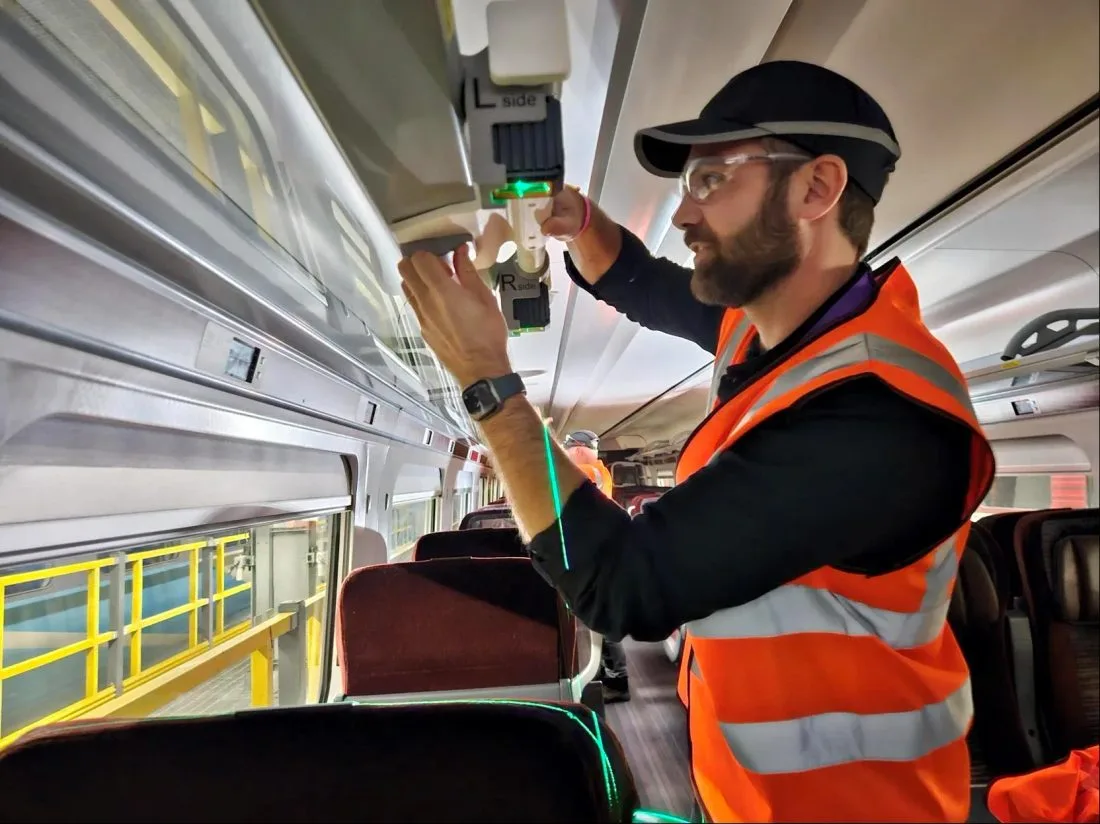
Install
- Clean the mounting surface under the luggage rack with a mixture of isopropyl alcohol and water, and let it dry.
- Place Prism in the installation jig, which sets the position and direction over the seat.
- Peel the film off the adhesive and press Prism firmly in place.
With the jig, fitting takes less than 30 seconds per seat.
Tune and test
The radar must be tuned to each seat layout: what counts as a person, and what is the seat or a fixed part of the carriage. In SeatSense, this is done for each seat layout from Yggio, over LoRaWAN.
To see what the radar sees at a seat, where the echoes are and how strong, make a scan with meth_cmd (see Radar commands), or try the settings on site with SweIoT Toolbox. Scans are also what lets an IoT platform such as Yggio calibrate mounted sensors automatically: it reads the scan, finds the seat and any fixed reflectors, works out the settings, and sends them back as radar commands.
Then test each seat: sit down, and get up again.
test:10 makes the radar measure every 10 seconds for 10 minutes, so you can see the result at once.Ready
- Each radar unit registered in the network server, with the JoinEUI and the right region
- Each unit joined with NFC, and the messages decoded
- Signal checked at the final spot: SF9 or better
- Prism fitted with the jig, each beam pointing at its seat
- Radar tuned for the seat layout
- Occupied and free tested on each seat
4Using the sensor
The radar board measures; the VSM application on the LoRaWAN board decides what to send. The settings named in bold are listed in the settings table.
How a seat is judged
Prism uses the Adv_Seating radar method, an extended seating method made for demanding occupancy uses:
- Occupied or free: the radar looks for a person in the seat, and tells an occupied seat from an empty one and from fixed parts around it.
- No false changes: a seat changes state only when several measurements in a row agree, so someone passing by, or leaning in for a moment, does not change it.
- Quiet when nothing happens: the radar measures often only while a change is being confirmed, which saves battery, and Prism reports only when the state of the seat changes.
- Wheelchair spaces: in wheelchair mode, Prism tells a wheelchair from another object, such as luggage, and reports every measurement.
How quickly a seat changes state, and what counts as a person, are set for each installation.
What it reports
- Occupied: 1 or 0, when it changes. In wheelchair mode, also object: 1 when something other than a wheelchair is there.
- Distance and echo strength: with the default Debug level (1), the distances and strengths of the echoes the method uses are sent with each change of the occupied state. They help when tuning. With 2, they are also sent on every change of the internal state, which costs more radio time; with 0, not at all.
- Temperature: off by default. Set the Temperature Interval to send it, for example every 60 minutes.
- Battery: every 8 hours by default (the periodic reports interval), the unit sends the battery voltage, with a counter that goes up by one each time. A single low value is normal, and so is a lower voltage in the cold.
Night mode
When the train is out of service, Prism can measure and send less. Set Night mode start and Night mode end in minutes after midnight UTC, for example 1,320 (22:00 UTC) and 300 (05:00 UTC). During night mode the radar measures five times less often, and a message that is not acknowledged is sent again at most once an hour (the night resend time). If start and end are the same, night mode is off, which is the default. Night mode follows the unit’s clock, which counts in UTC and is set from the network: allow for your time zone and for summer time.
Network
- Confirmed messages: the occupied state, the object and the distances are acknowledged by the network server. If no acknowledgement arrives, the unit sends them again, waiting at least 80 seconds and at most 4 hours between tries (Min and Max time between ReSend tries).
- Joining: if a unit is not joined, it tries to join every 5 hours (Time between join retries), and at least once a day. An NFC touch starts a join attempt at once. The radar is switched off while the unit is not joined.
- Losing the network: a unit gives the network up and joins again if it has heard nothing from it for the Time from last RX before unjoin (15 days by default), or for the Downlink Timeout (see Device registers).
- Adaptive data rate: the unit sets its own data rate and transmit power (sensor ADR, not the network server’s ADR), and the application damps and limits those adjustments. That matters on a train: when the power is switched off, the on-board gateway goes off too, and the unit finds its own way back to a working data rate when the gateway returns, without waiting for the network server’s adjustments. In the same way, when the train stands in the depot at night, the unit can turn up its own spreading factor and power to reach the depot’s gateway, further away than the one on board.
Decoding the messages
The messages are compact binary records, and their meaning depends on the application version. Decode them with a VSM-aware decoder:
- Yggio decodes them with its built-in VSM translator, and keeps track of each sensor’s application version.
- Other platforms: use Munin, Sensative’s open-source MQTT client. It decodes the messages for any network server, keeps the device state the decoder needs and the device time up to date.
- Your own integration: the open-source VSM translator is the decoder that Munin uses, available as a Node package. It needs two things from you: it must be able to store at least the rulesCrc32 for each sensor between messages, and it must be kept up to date, since new application versions are released without notice.
Changing the settings
There are two kinds of settings: the VSM application’s settings on the LoRaWAN board (night mode, temperature, debug level, network), and the radar settings on the radar board (the seat tuning). Both can be changed over the air, and on site with an app. Each radar unit is set on its own.
| Over LoRaWAN | On site | |
|---|---|---|
| Application settings (LoRaWAN board) | Downlinks on port 2 or port 7 | The Hugin NFC app (Android), for example with a QR code from the VSM Configuration Tool |
| Radar settings (radar board) | Radar commands on port 48 | The SweIoT Toolbox app (Android), over Bluetooth |
| Software updates | New VSM applications | Hugin: the LoRaWAN board’s firmware and VSM application. SweIoT Toolbox: the radar firmware, which can only be updated this way |
The VSM Configuration Tool makes the downlinks. Pick the application by name and version, or by the rulesCrc32 from the unit’s port 15 message (see Which application is in the sensor), choose Custom, and set the values. Take the result as downlinks for port 2 and port 48, as a single port 7 payload, or as a QR code for the Hugin app.
5The apps: Hugin and SweIoT Toolbox
Hugin NFC app (LoRaWAN board)
Hugin is an optional Android app for working with the sensor on site, over NFC. It needs an Android phone with NFC and GPS, and an Yggio user account. The sensor must also be registered in Yggio with your organisation as its owner: Hugin checks this with Yggio before it lets you work with the sensor. Hold the phone to the sensor as in Finding the NFC antennas. The app then shows the serial number, the application and its version, the state (for example joined), battery, link and region information, and the DevEUI. Depending on your rights in Yggio, it can read and apply configuration profiles, including one scanned as a QR code from the VSM Configuration Tool, and update the device time.
Hugin also updates the LoRaWAN board’s firmware and VSM application. In a double Prism, work with each unit on its own NFC area.
Installation, sign-in, flashing and troubleshooting are in the Hugin NFC app manual.
SweIoT Toolbox (radar board)
SweIoT Toolbox is an Android app, on Google Play, that talks to the radar board over Bluetooth. There is no iPhone version. Use it on site to read and change the radar settings, and to update the radar firmware, which can only be updated this way.
- Start the radar’s Bluetooth with Hugin: Bluetooth on the radar board is off most of the time, for three reasons: it saves battery, it keeps radio traffic in the air down, and it limits who can reach the radar board, in line with the EU Cyber Resilience Act. Only the registered owner of the unit, or users the owner has given the right, can switch Bluetooth on. To start it for SweIoT Toolbox, hold the phone to a unit’s NFC area with the Hugin app open and press Activate Radar Bluetooth: its radar board then advertises for about 20 seconds, so connect from SweIoT Toolbox within that time. You can also switch it on remotely, with a LoRaWAN downlink, for example from Yggio: set Radar BT Advertise trigger to 1 (see Settings). In Yggio, only users with the right to the unit can send it.
- In the app: SweIoT Toolbox guides you through the radar method and its main settings. Its Commands and Logs menu takes the same radar commands as LoRaWAN.
6Maintenance and removal
Battery
Each radar unit has its own built-in 2,500 mAh LiMnO₂ battery and lasts about ten years with the standard SeatSense settings. Measuring more often, a higher debug level and a weak link shorten it. The battery voltage arrives with the periodic reports (see What it reports).
Cleaning
Wipe Prism with a dry or slightly damp cloth. Do not cover the front faces: the radar looks out through them.
Removing Prism
Slide dental floss between Prism and the surface and saw gently through the adhesive.
Moving to another network server
Delete each unit from the old network server and add it to the new one. The units then lose the old network and join the new one. With the Hugin app you can restart a unit at once instead (Toggle On/Off), but that also resets any custom settings.
Storage and disposal
- Store unused sensors at +10 to +30 °C.
- The batteries are lithium manganese dioxide (LiMnO₂), one of the most stable lithium chemistries, and are not replaceable. Do not open Prism, and do not puncture it or heat it above +80 °C.
- When the batteries are empty, dispose of the whole sensor as a battery, for recycling. Near the end of its life a battery normally swells a little; this is expected.
7Troubleshooting
| Problem | What to do |
|---|---|
| An empty seat is reported occupied | A fixed echo near the seat, such as a frame or an armrest, is taken for a person. Make a scan of the seat (see Radar commands) and adjust the tuning for that seat layout. |
| An occupied seat is reported free | The person’s echo is too weak or drops out. Make a scan with someone in the seat, and adjust the tuning for that seat layout. |
| The seat changes state slowly | The measuring intervals are set to save battery. Shorter intervals react faster, and cost battery. |
| The wrong seat is detected | Check that the mounting variant and the position fit the seat layout, and that each unit is registered for the right seat (see Finding the NFC antennas for which unit is which). |
| Only one unit of a double Prism reports | Each unit joins on its own. Register both units, and touch each NFC area in turn. |
| Nothing happens when I hold the phone to it | Check that NFC is on and the phone case is off. Lay the phone flat on the NFC area of the unit and move it slowly until it signals contact, then hold it still. |
A radar command is answered with * | The command was not accepted. Check its format and values, and read the current values with 7?. |
| SweIoT Toolbox cannot find the radar | Start Bluetooth with the Hugin app on the unit’s NFC area, which needs access rights to the unit in Yggio, then connect within about 20 seconds; or send the Radar BT Advertise trigger. SweIoT Toolbox is Android only. |
| Join Request in the network server, but no Join Accept | Check the keys of that unit, the JoinEUI 70B3D52C0001D4C3, the LoRaWAN version (1.0.4), the regional parameters (RP002-1.0.3) and the frequency plan (EU868). |
| “MIC mismatch” | The keys are wrong: check that they belong to this unit. A double Prism has two sets of keys. |
| Messages arrive, but the decoder shows no readings | The decoder has usually missed the application identity: send 00 on port 15, and check that the decoder is up to date (see Which application is in the sensor). |
| A new setting has no effect | A downlink arrives only after the unit’s next message, which may wait until the seat changes state. Touch the unit with NFC to make it send, and check that the downlink was made for the rulesCrc32 the unit reports. |
| Messages missing or irregular | Check RSSI and SNR, and the gateway coverage along the train. Some channels can also be disturbed by interference on the same frequency band. |
8Technical reference
For integrators. The values below are for the application Seat-occupancy R30–R33, and apply to each radar unit. Other versions can differ: check the VSM application documentation or the VSM Configuration Tool for yours.
Which application is in the sensor
Right after it has joined, each unit sends its application identity, the rulesCrc32, on port 15. The decoder uses it to pick the right translation, and you need it to make the right downlinks. For this application it is:
| Application | Seat-occupancy |
| Version | R30–R33 |
| rulesCrc32 | 3297213463 (hex C4877C17) |
If you missed the message, send 00 on port 15 and the unit sends its identity again. The Hugin NFC app also shows the application and its version on site.
Alternative applications: besides Seat-occupancy, Sensative can offer other VSM applications for Prism’s LoRaWAN board. They are available in the Hugin NFC app (Android) and can also be loaded over LoRaWAN.
LoRaWAN and ports
| LoRaWAN | MAC 1.0.4, regional parameters RP002-1.0.3, class A, OTAA, max EIRP 14 dBm |
| JoinEUI | 70B3D52C0001D4C3 (all Prism, Puck and Square sensors) |
| Port | Direction | What it carries |
|---|---|---|
| 1 | Uplink | Readings and states (see Messages) |
| 11 | Uplink | The same outputs in compressed form |
| 15 | Uplink | Application identity (rulesCrc32), first thing after a join |
| 15 | Downlink | 00 asks the unit to send its application identity again |
| 2 | Downlink | Application settings and read requests (see Settings on port 2) |
| 2 | Uplink | The unit’s answer: the values it now has |
| 7 | Downlink | A whole configuration in one payload, radar commands included (see A whole configuration on port 7) |
| 7 | Uplink | The status of that configuration: None, Applied, Error or Dirty |
| 48 | Downlink | A radar command, as text (see Radar commands) |
| 32 | Uplink | The radar board’s answer, as text |
Messages
Each output has an id and a scale. “Confirmed” outputs are acknowledged by the network server.
| Output | Id | Size and scale | Unit | Confirmed | Sent |
|---|---|---|---|---|---|
| occupied | 80 | 1 byte | 1 = occupied, 0 = free (wheelchair mode: 1 = wheelchair) | Yes | When it changes |
| object | 81 | 1 byte | 1 = another object (wheelchair mode) | Yes | When it changes |
| distance, amplitude | 91 90 | 2 bytes each; distance × 0.01 | m, echo strength | Yes | With Debug level 1 or 2 |
| distance2, amplitude2 | 93 92 | 2 bytes each; distance × 0.01 | m, echo strength | Yes | A second echo; with Debug level 1 or 2 |
| state | B6 | 2 bytes | internal state of the method, for tuning | No | With Debug level 2 |
| temp | B0 | 2 bytes, × 0.01 | °C | No | Every Temperature Interval (off by default) |
| radarVoltage_V | B5 | 2 bytes, × 0.001 | V | No | With the periodic reports |
| periodicReportsCounter | BA | 4 bytes | count | No | With each periodic report |
| nfcContactCount | 98 | 4 bytes | count | Yes | After an NFC touch |
Settings
The defaults are the values a unit starts with. The id is what a port 2 downlink uses. Values are sent in the steps shown: a setting in steps of 0.01 is sent as a hundred times its value.
| Setting | Name in the application | Id | What it does | Unit | Range | Default |
|---|---|---|---|---|---|---|
| Night mode start | nightmodeStart | B3 | When night mode starts, in minutes after midnight UTC. Equal to the end = off. | minutes | 0–1,440 | 0 |
| Night mode end | nightmodeEnd | B4 | When night mode ends, in minutes after midnight UTC. | minutes | 0–1,440 | 0 |
| Time between ReSend tries in night mode | minResendWaitTimeNight | BD | Wait between tries for an unacknowledged message during night mode. | seconds | 3,600 | |
| Min time between ReSend tries | minResendWaitTime | BB | Shortest wait between tries for an unacknowledged message. | seconds | 0–65,000 | 80 |
| Max time between ReSend tries | maxResendWaitTime | BC | Longest wait between tries. | seconds | 14,400 | |
| Debug level | debugLevel | A5 | 0 = occupied and object only. 1 = also the distances and echo strengths when they change. 2 = also on every change of the internal state, for a limited time. | level | 0–2 | 1 |
| Temperature Interval | temperatureReportInterval | B1 | How often the temperature is sent. 0 = off. | minutes | 0–32,767 | 0 |
| Temperature Calibration | temperatureUserCalibration | B2 | Offset added to the temperature. | °C, steps of 0.01 | −10 to +10 | 0 |
| Interval between periodic reports | periodicReportsInterval | A4 | How often the battery voltage is sent. | hours | 0–250 | 8 |
| Radar BT Advertise trigger | radarBtAdvertiseTrigger | A3 | 1 makes the radar board advertise on Bluetooth, for SweIoT Toolbox. | on/off | 0–1 | 0 |
| Time between join retries | timeBetweenJoinAttemts | B8 | How long a unit waits between join attempts when it is not joined. | minutes | 0–32,767 | 300 |
| Time from last RX before unjoin | timeBeforeUnjoin | B9 | How long a unit goes without hearing the network before it joins again. | hours | 0–32,767 | 360 |
| Max Power Index | maxPowerIndex | A2 | Highest LoRaWAN power index the unit may use, join included. | index | 0–16 | 12 |
| LoRaWAN power filter factor up | powerIndexFilterFactorUp | A0 | How slowly the unit follows its own adaptive data rate towards a slower setting. 1 = no filter, 10 = very slow. | number | 1–50 | 10 |
| LoRaWAN power filter factor down | powerIndexFilterFactorDown | A1 | The same, towards a faster setting. | number | 1–50 | 3 |
Device registers
These belong to the firmware rather than to the application, but can be changed the same way. Leave them as they are unless you have a reason.
| Register | Name | Id | What it does | Unit | Range | Default |
|---|---|---|---|---|---|---|
| Device Time Max Age | GPS_TIME_MAX_AGE | CD | How long the unit trusts its clock, which night mode uses. From 80 % of this time, it asks the network for the time with the standard DeviceTime request (DeviceTimeReq); the network server must answer DeviceTime requests. | seconds | 0–4,294,967,295 | 0 |
| Downlink Timeout | LINKCHECK_TIME | D0 | How long the unit goes without hearing anything from the network before it gives the network up. From half of this time, every uplink is confirmed; from 80 %, it also sends link checks of its own. | seconds | 300–2,592,000 | 86,400 |
| TX Power Range | TX_POWER_RANGE | D8 | The power index range for fast adaptive data rate. Turning it up costs battery. | 2 bytes | 0–65,535 |
Released profiles
No ready-made profiles are released for this application. A unit starts with the defaults in the settings table; to change them, use Custom in the VSM Configuration Tool.
Settings on port 2
A port 2 downlink is a list of records of 5 bytes each: one byte for the setting’s id, then the value as a signed 32-bit integer, most significant byte first. The unit applies the values and answers on port 2 with the values it now has.
Reading values
A port 2 downlink of one to four bytes is a read request: the unit sends back the current value of each id in it.
| Port 2 downlink | The unit answers with |
|---|---|
04 | Current temperature, in hundredths of a degree |
B3 | The Night mode start now set (any setting id works the same way) |
A whole configuration on port 7
The VSM Configuration Tool can also pack a configuration into a single port 7 payload. It starts with the application’s CRC and ends with a checksum of the configuration (configCrc32). The sensor reports the result on port 7: None, Applied, Error or Dirty.
Radar commands
The radar board takes short text commands. Send each as a port 48 downlink, in ASCII; the VSM Configuration Tool can make them for you. The radar board answers on port 32, as text: an answer starting with = means the command was accepted, * means an error. About an hour after a change, the radar board also sends the settings it now runs.
| Command | What it does |
|---|---|
7? | Read the settings of the Adv_Seating method |
7:values | Write the settings of the Adv_Seating method, for example the tuning of a seat layout. An empty position keeps that setting |
sys? | Read the system settings; position 1 is the method (7) |
measure | Measure once, now |
test:10 | Test mode: measure every 10 s for 10 minutes, then go back to normal |
meth_cmd:2,0.3,1.7,28 | A scan from 0.3 to 1.7 m in 28 sections of 5 cm: the strongest echo in each, divided by 10, from the latest measurement |
version | Read the radar firmware version |
restart | Restart the radar board |
factory | Reset all radar settings to the factory defaults. The seat tuning is lost |
Leave the system settings as delivered; in particular, never change the transport setting (system position 7), which can cut the radar board off from LoRaWAN.
Worked example 1: Night mode from 22:00 to 05:00 UTC
Measure and send less while the train is out of service. Both examples were made in the VSM Configuration Tool for rulesCrc32 3297213463. Send either the downlinks in order, or the single port 7 payload, not both, to each radar unit.
| Setting | Value | Sent as | Record |
|---|---|---|---|
| Night mode start | 22:00 UTC | 1,320 | B3 00 00 05 28 |
| Night mode end | 05:00 UTC | 300 | B4 00 00 01 2C |
| Port | Downlink (hex) | Base64 |
|---|---|---|
| 2 | B4 00 00 01 2C B3 00 00 05 28 | tAAAASyzAAAFKA== |
| Or 7 | C4 87 7C 17 02 0A B4 00 00 01 2C B3 00 00 05 28 00 D6 54 6C 4D |
Worked example 2: The temperature every hour, and less radio traffic
Send the temperature every 60 minutes, and send only the occupied state, without the distances and echo strengths (Debug level 0).
| Setting | Value | Sent as | Record |
|---|---|---|---|
| Temperature Interval | 60 min | 60 | B1 00 00 00 3C |
| Debug level | 0 | 0 | A5 00 00 00 00 |
| Port | Downlink (hex) | Base64 |
|---|---|---|
| 2 | A5 00 00 00 00 B1 00 00 00 3C | pQAAAACxAAAAPA== |
| Or 7 | C4 87 7C 17 02 0A A5 00 00 00 00 B1 00 00 00 3C 00 D5 4C 3B 3A |
9Specifications
| Radar | 60 GHz coherent radar (Acconeer A111), about ±10° beam, 0.2–6.8 m |
| Radar units | 1 or 2, each with its own radar board, LoRaWAN board and battery |
| Radar method | Adv_Seating (radar firmware 2.24): occupied or free, wheelchair or other object |
| Other sensors | Temperature |
| Radio | LoRaWAN 1.0.4, class A, OTAA; JoinEUI 70B3D52C0001D4C3; one device per radar unit |
| Frequency plan | EU868 |
| Configuration | Both boards over LoRaWAN; on site with Hugin (NFC, Android) and SweIoT Toolbox (Bluetooth, Android) |
| Updates | LoRaWAN board: firmware and VSM application with Hugin, VSM applications also over LoRaWAN. Radar board: firmware only over Bluetooth, with SweIoT Toolbox |
| Application | VSM application Seat-occupancy (R30–R33) |
| Battery | Built-in LiMnO₂, 2,500 mAh per radar unit, in an aluminium cradle; about ten years with the standard SeatSense settings |
| Standards | EN 50155 (rolling-stock electronics), EN 50121-3-2 (EMC), EN 61373 (shock and vibration); UL94-V0 material |
| IP rating | IP54 |
| Operating temperature | −20 to +60 °C |
| Storage temperature | +10 to +30 °C |
| Dimensions | 82 × 82 × 27 mm |
| Variants | Single or double; flat back or wedge; 13 mounting variants |
| Mounting | Adhesive, pre-applied; installation jig |
| Availability | As part of SeatSense |
10Support
- SeatSense: seatsense.se
- VSM Configuration Tool, opened at this application: vsm-lora-config-app.service.sensative.net
- VSM application documentation for this version: github.com/Sensative/vsm-application-documentation
- VSM translator (open source): github.com/Sensative/vsm-translator-open-source
- Hugin NFC app: Sensative Docs
- SweIoT Toolbox (Android): Google Play; quick start: sweiot.gitbook.io
- Support, FAQ and downloads: sensative.com/support
- Product page: sensative.com/sensors/prism
Sources: VSM Configuration Tool, application data for Seat-occupancy (read 31 October 2026); VSM application documentation on GitHub (3297213463-Seat-occupancy); PUCK Radar Sensor User Manual, radar firmware 2.24 (Adv_Seating); Prism product sheet, Rev B; VSM translator (open source); specifications from the sensative.com product data.