Strips Presence is an active infrared sensor for LoRaWAN. Mounted under a desk, it reports whether someone is sitting there; in object mode it reports whether something is in place. It also measures temperature.
In the box
- Strips Presence, with the adhesive already on the back
- One or two magnets on the sensor. They keep it in transport mode.
- The LoRaWAN keys (DevEUI, JoinEUI and AppKey), on a label in the box and by e-mail
You need
- A LoRaWAN gateway within range, powered on and online
- An account on a LoRaWAN network server, with the gateway added
- The region on the sensor's label. Gateway and network server must use the same region, and in US915 and AU915 the same sub-band.
- The Strips payload decoder in your network server or application
- Ordinary tape, to try the position
From box to ready
Register the sensor in the network server
Add a new end device: OTAA, LoRaWAN 1.0.4, regional parameters RP002-1.0.1 and the frequency plan for your region. Enter the DevEUI, JoinEUI (AppEUI) and AppKey exactly, and add the Strips payload decoder.
Join and check the signal
Take every magnet off the sensor. It sends a join request: a short green blink, then one long green blink when joined. Five short red blinks means the join failed: check the keys, region, sub-band and gateway. Then hold Strips where it will sit and send an uplink: magnet to the rounded end three times, 20 cm away and 2 seconds apart.
Choose the place
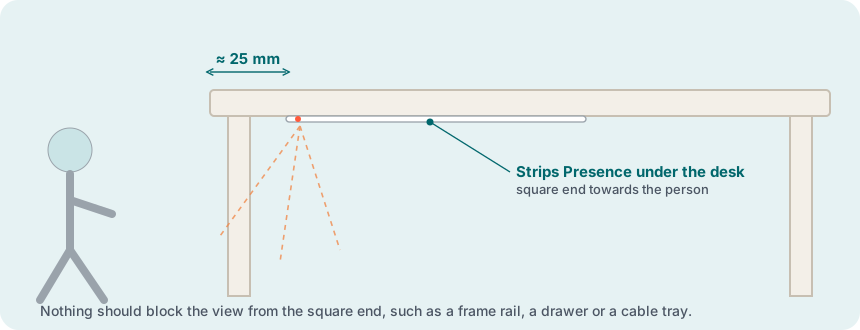
Under the desk, with the square end about 25 mm from the edge where the person sits, facing them. Strips can run along the edge, or with the rounded end pointing to the middle of the desk. Nothing may block the view from the square end: no frame rail, drawer or cable tray.
Mount
Clean the underside of the desk: clean, dry and at least +10 °C. Try the position with tape, then peel the film off the adhesive and press Strips firmly in place. The adhesive is permanent.
Test
Strips Presence is delivered with the Default fast profile and reports presence from the start. Sit at the desk as normal for a few minutes, then leave it. Choose another profile in the Strips LoRa Config Tool only if it fits the space better, for example Office, Public or Object Detection.
More in the full manual
Settings, troubleshooting, maintenance and specifications are in the Strips Presence for LoRaWAN manual.
Support: support@sensative.com