Square Tracker L tells you where your assets are indoors: it scans the Wi-Fi access points around it when it starts or stops moving, and a cloud service such as Yggio turns the scans into positions. Its 6,000 mAh battery is made for frequent positions.
In the box
- Square Tracker L, with the adhesive already on the back
- The keys (DevEUI and AppKey) come with the delivery information
You need
- A LoRaWAN gateway within range, online, and an account on a LoRaWAN network server with the gateway added
- The sensor’s DevEUI and AppKey. The JoinEUI is
70B3D52C0001D4C3 - A phone with NFC, to start the sensor. Android is recommended; an iPhone needs an NFC reading app
- A payload decoder for Sensative VSM sensors, and a cloud service that supports Wi-Fi positioning, for example Yggio. Without it the scans give no position
- The optional Hugin NFC app needs an Android phone with NFC and GPS, and an Yggio user account, with the sensor registered to your organisation
From box to ready
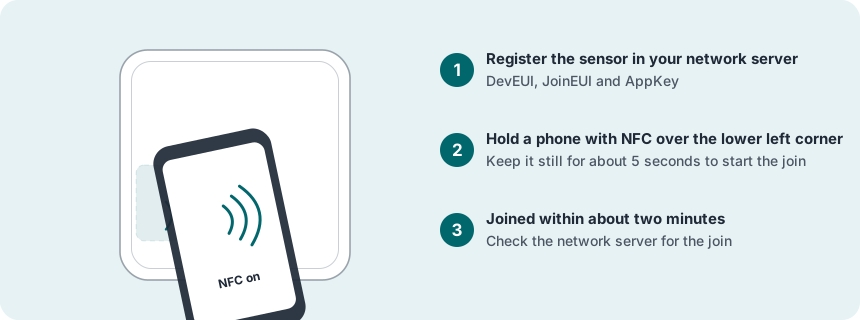
Register the sensor in the network server
Add a new end device: OTAA, MAC version 1.0.4, regional parameters RP002-1.0.3, max EIRP 14 dBm, and your frequency plan. Enter the DevEUI, the AppKey and the JoinEUI.
Join the network with NFC
Switch NFC on and take off the phone case. Hold the phone over the lower left corner of the front and keep it still for about 5 seconds.
Check the signal where it will sit
Put the sensor where it will be mounted and look at its messages in the network server.
Mount it on the asset
Clean the surface with a 50:50 mixture of isopropyl alcohol and water and let it dry. Peel the film off the adhesive and press the sensor firmly in place, with the NFC corner still reachable.
Test
Move the asset, or the sensor, and then leave it still. By default it scans when it starts or stops moving, and once a day while still.
More in the full manual
Settings, troubleshooting, maintenance and specifications are in the Square Tracker L for LoRaWAN manual.
Support: support@sensative.com